
Sorry, this entry is only available in Português.
Category: VBA
Dicas, modelos, exemplos da ferramenta que faz a grande diferença a suíte Microsoft Office
VBA – TextBox Date Mask (updated)
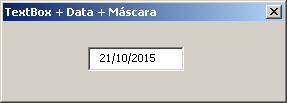
A long time ago, I published a hint which coming from the forum that explains how to set a TextBox to have a mask, like date, phone, etc in the link bellow:
The code works well, but it has a bug for date mask. The bug don’t allow ther user to erase all text using the backspace or delete key. Well, after some effort, here is a way to fix it:
Private KeyCodeToAvoid As MSForms.ReturnInteger Private Sub TextBoxData_KeyDown(ByVal KeyCode As MSForms.ReturnInteger, ByVal Shift As Integer) Set KeyCodeToAvoid = KeyCode End Sub Private Sub TextBoxData_KeyPress(ByVal KeyAscii As MSForms.ReturnInteger) 'Limita a Qde de caracteres TextBoxData.MaxLength = 10 'para permitir que apenas números sejam digitados If KeyAscii < Asc("0") Or KeyAscii > Asc("9") Then KeyAscii = 0 End If End Sub Private Sub TextBoxData_Change() 'Formata : dd/mm/aaaa 'não avalia se for backspace ou delete If Not (KeyCodeToAvoid = KeyCodeConstants.vbKeyBack Or KeyCodeToAvoid = KeyCodeConstants.vbKeyDelete) Then If Len(TextBoxData) = 2 Or Len(TextBoxData) = 5 Then TextBoxData.Text = TextBoxData.Text & "/" SendKeys "{End}", True End If End If 'zera o keycode KeyCodeToAvoid = KeyCodeConstants.vbKey0 End Sub |
I hope you enjoy it!
VBA – Check if site is online
And here is one more gift from our forum. I love the forum (Did I already say that?).
It was a simple question: How do I check if a site is online? Ok, after a rapid internet search, I’ve found a interesting post on MrExcel forum (by the way, it’s excellent!):
It brought to us the function below:
Function getHtmlFromUrl(pURL As String) As String Dim resText As String Dim objHttp As Object Set objHttp = CreateObject("MSXML2.ServerXMLHTTP") objHttp.Open "GET", pURL, False objHttp.Send "" getHtmlFromUrl = Mid(objHttp.ResponseText, 1, 255) End Function |
The function uses the MSXML2.ServerXMLHTTP library to create a request to a valid URL and returns the HTML of response. It is useful, but, it’s to much if you only want to check if the site is online. The only thing you need to check is the HTTP Code. If the code is 200, everything is ok!
So, I’ve changed the code a bit to this (my apologies for the portuguese names, but, you know, this is a brazilian blog – 🙂 ):
Sub EstaOnline() Debug.Print IsSiteOnline("https://www.tomasvasquez.com.br") End Sub Function IsSiteOnline(pURL As String) As Boolean On Error GoTo TrataErro Dim resText As String Dim objHttp As Object Set objHttp = CreateObject("MSXML2.ServerXMLHTTP") objHttp.Open "GET", pURL, False objHttp.Send "" IsSiteOnline = objHttp.Status = 200 TrataSaida: Exit Function TrataErro: IsSiteOnline = False GoTo TrataSaida End Function |
I’ve created the EstaOnline Sub as an example of how to call the IsSiteOnline function, which returns a boolean value. If it’s True, the site is online. Otherwise, it’s offline, broken, down, missed…. whatever.
More about ServerXMLHTTP:
http://msdn.microsoft.com/en-us/library/ms766431(v=vs.85).aspx
File Sample:
https://www.tomasvasquez.com.br/forum/download/file.php?id=2246
Enjoy!
VBA – How to avoid Auto_Open execution and similars

We love macros (well, I love them!). They save our lives automating the most annoying part of our job. Macros are the best! But, it depends on what kind of macros we’re talking about.
Here, the annoying macros are knowing as “auto started macros”, mainly, the Auto_Open Sub. I’ve already described how it works in this post. In a nutshell, the Auto_Open Sub executes when the application starts. The most common usage of this special Subs are present some information or alerts about the application, splash screens and, of course, the annoying part, turns the Excel invisible, hides toolbars, disables shortcuts, etc. After this, it’s impossible to have access to VBA IDE, check the code, debug and so on.
Unfortunately, disable the macros is not an option because of you can’t reactivate them unless you close and open the workbook again.
Fortunately, there is an easy, actually, super easy way to avoid the Auto_Open Sub execution, even with macros enabled. Try to open the workbook holding the Shitf key, choosing the “Enable macros” option.

And here it is! There are no differences besides the fact that the Auto_Open will not execute. Everything else will work perfectly. If the code inside the Auto_Open is essential for the application, you can execute it manually.
Enjoy!